Multi-Factor Authentication adds an extra layer of security beyond your password when accessing the Sevio System. Using MFA is crucial for complying with security regulations and protecting sensitive data.
It is possible to enable and disable MFA for your Account.
MFA can be:
To enable MFA for your Account:
- Go to the Profile section of your Personal Area.
- Select Edit.
- Enable the MFA method.
- Save.

Realm Owners can require MFA for all Users within their Realm.
You can see which Realm require MFA in the Realms section.
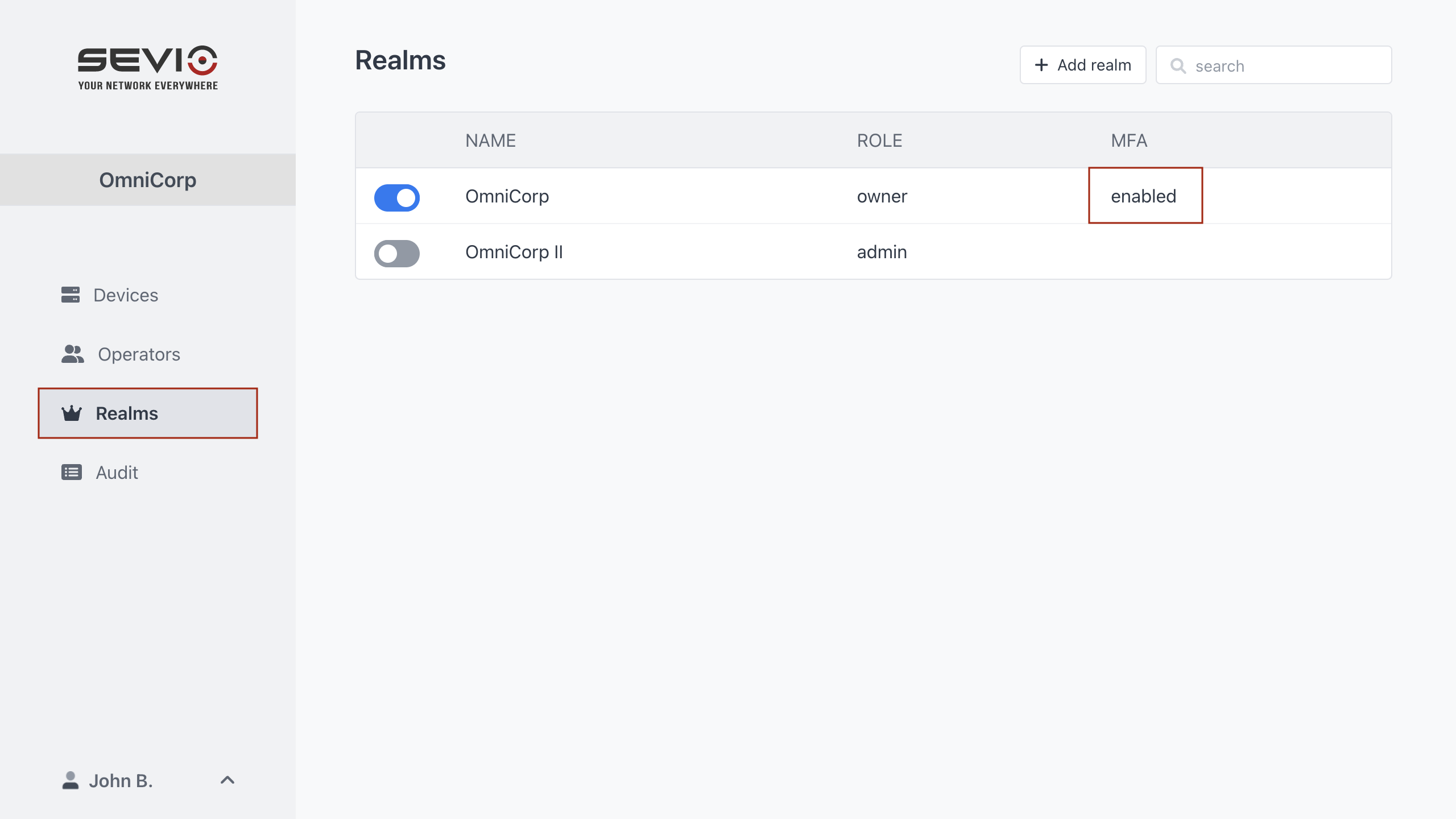
Even if only one of your Realms requires MFA, you'll need to use it for all Sevio Portal and VPN Client access.
To enable MFA for an entire Realm:
- Go to the Realms section and select the desired one.
- In the Parameters Submenu, click Edit.
- Enable the MFA method.
- Save.
If enabled, MFA is required to:
If MFA is enabled on the personal Profile or required by the Realm, confirm your identity with the OTP code (One-Time Password) sent to your email during the Sevio Portal login.
If MFA is enabled on the personal Profile or required by the Realm, confirm your identity with the OTP code (One-Time Password) sent to your email during the Sevio Client login.

If MFA is enabled on the personal Profile or required by the Realm, confirm your identity with the link sent to your email during the OpenVPN connection procedure.
Operators with access to multiple Realms are also required to select the relevant Realm.