
Sevio Client provides fast and secure access to remote plants. The Sevio VPN allows Operators to monitor and manage Devices at any time and from multiple Workstations.
Download and Login
To install Sevio Client, visit https://client.sevio.it and download the application.
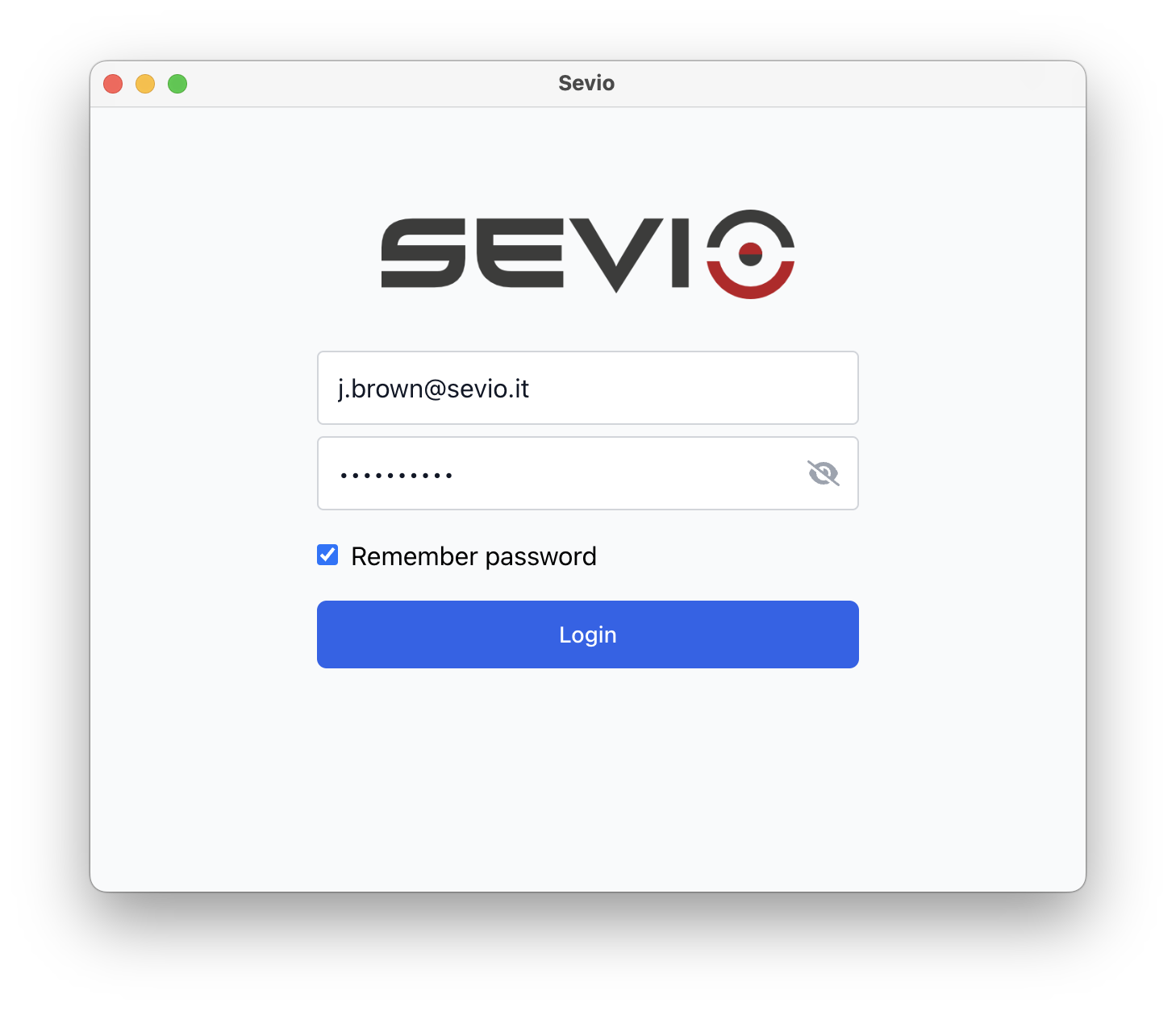
During login, enter the credentials (email and password) used for the Sevio Portal. Select Remember password to enable automatic reconnection.
If the MFA method is enabled, enter the OTP code received via email.
Realm and Device List
The Realm list displays the Realms to which the Operator has access. If the User belongs to only one Realm, this section is omitted.
By selecting the desired Realm, you access the Device list.
The Device list includes only Routers for which access has been enabled in the Sevio Portal, regardless of the Operator’s role.
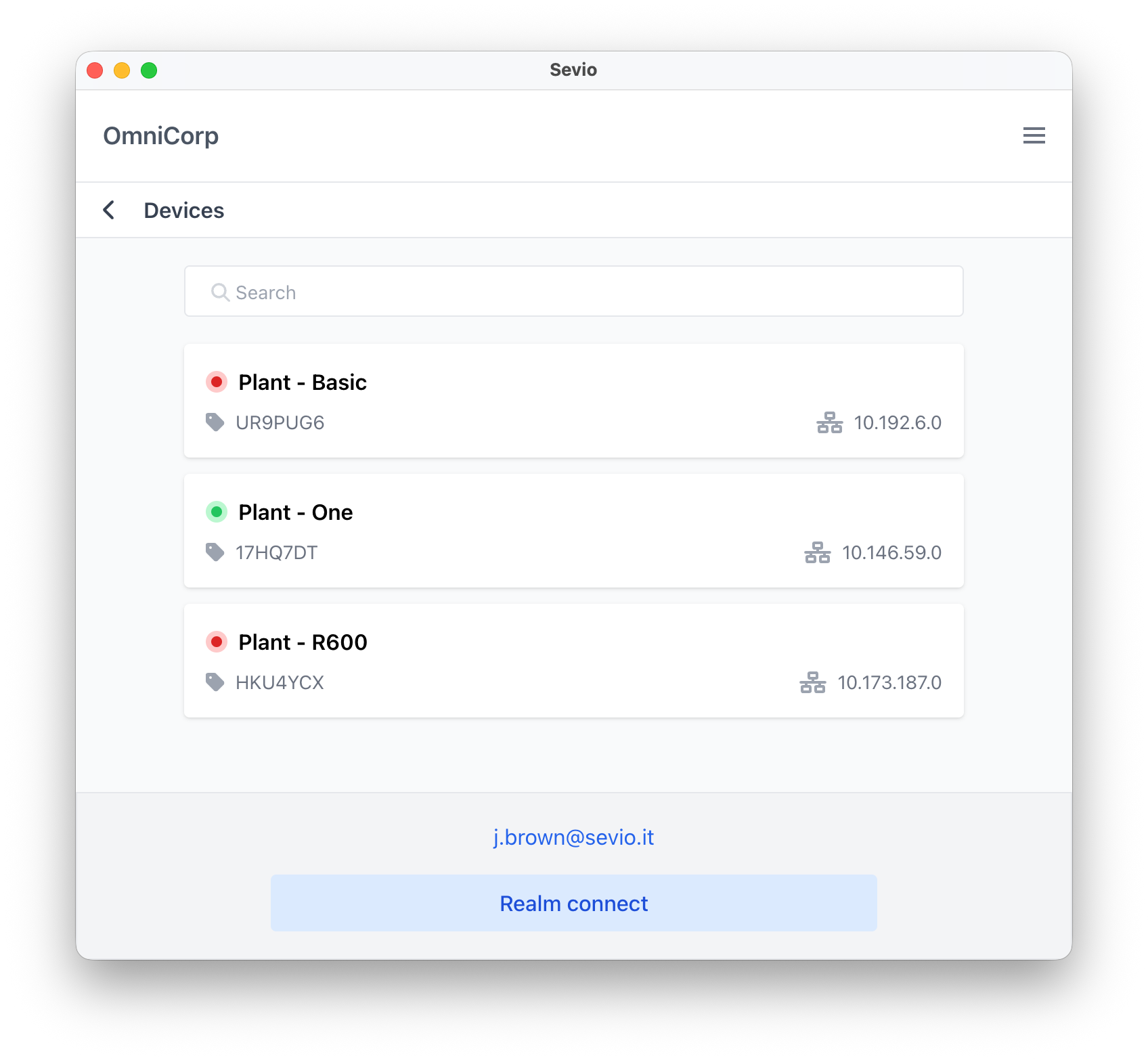
The list of Realms and Devices can be filtered using the Search field.
Realm VPN
To establish a Realm VPN connection:
- Access the Device list.
- Click the Realm Connect button.
- Once finished, disconnect by clicking Realm Disconnect.
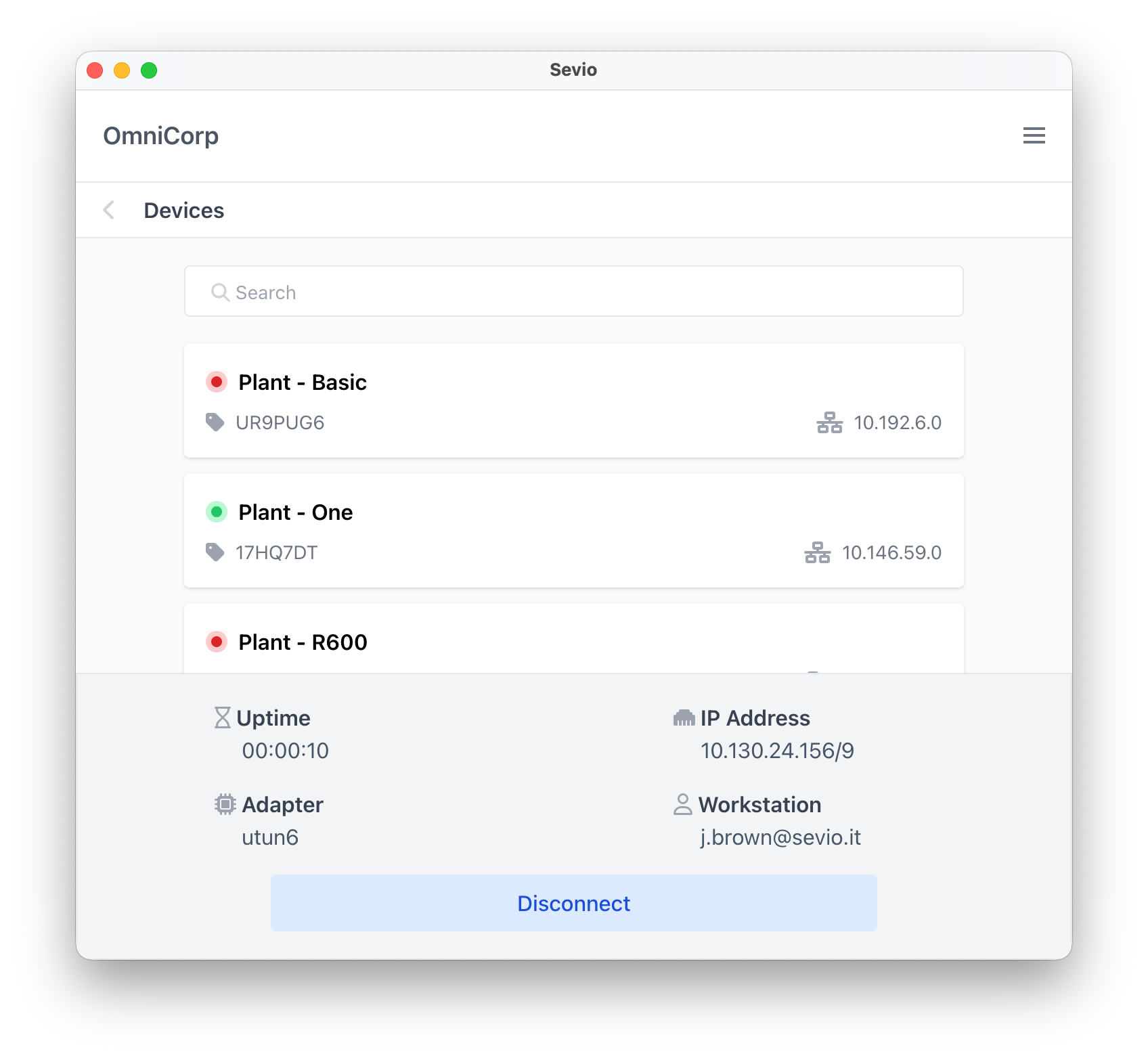
The following details are displayed upon connection:
| Uptime | Connection uptime. | |
| Adapter | TAP adapter description. | |
| IP Address | IP address assigned by the server. | |
| Workstation | Workstation in use. |
During the connection, it is not possible to leave the current page or log out.
Workstations
In the Device list, it is possible to manage the Workstations.
To use an alternative Workstation, select the email address (current Workstation) displayed above the Realm Connect button. The Workstations menu will appear, showing the complete list of available Workstations.
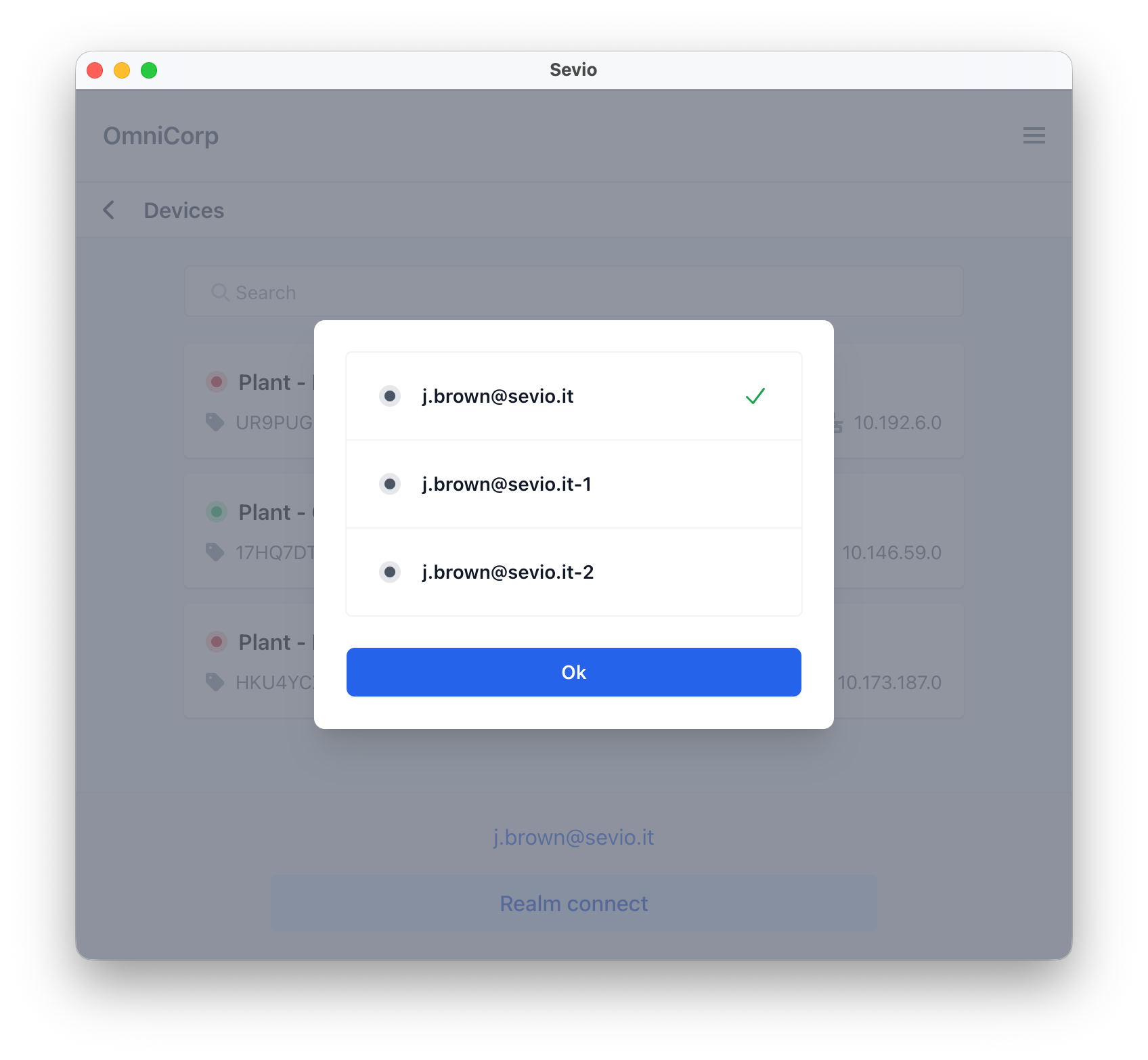
The LED displayed before each Workstation indicates its status:
 - Workstation in use.
 - Workstation available.
The main Workstation is associated with the User's email address. All additional Workstations are numbered sequentially by adding a suffix. For example, if the first Workstation is "j.brown@sevio.it", the second one will be "j.brown@sevio.it-1".
Upon each login, the primary Workstation is selected by default; any changes will remain active until logout. For more details on their configuration, please consult the Workstation Management article.
Tray icon
The tray icon provides quick Client access and management, ensuring it runs in the background even after closing the main window.
The icon indicates the connection status:  connected /
  disconnected.
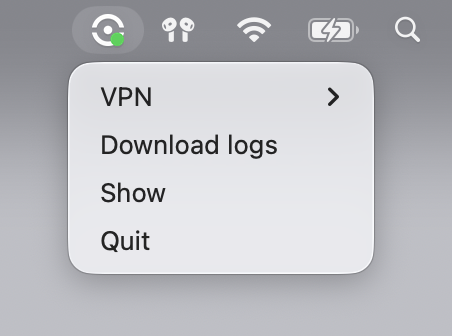
Clicking the tray icon opens a menu with the following options:
- VPN > Disconnect: terminates the connection to the Realm VPN.
- Download logs: downloads log files for diagnostics and technical support.
- Show: opens the main Client interface.
- Quit: closes the application.