
As an alternative to Sevio Client, Workstations can be configured to use the Sevio System via OpenVPN.
This section provides the procedure to configure and use the Realm VPN service.
The configuration procedure has to be completed only once per Workstation.
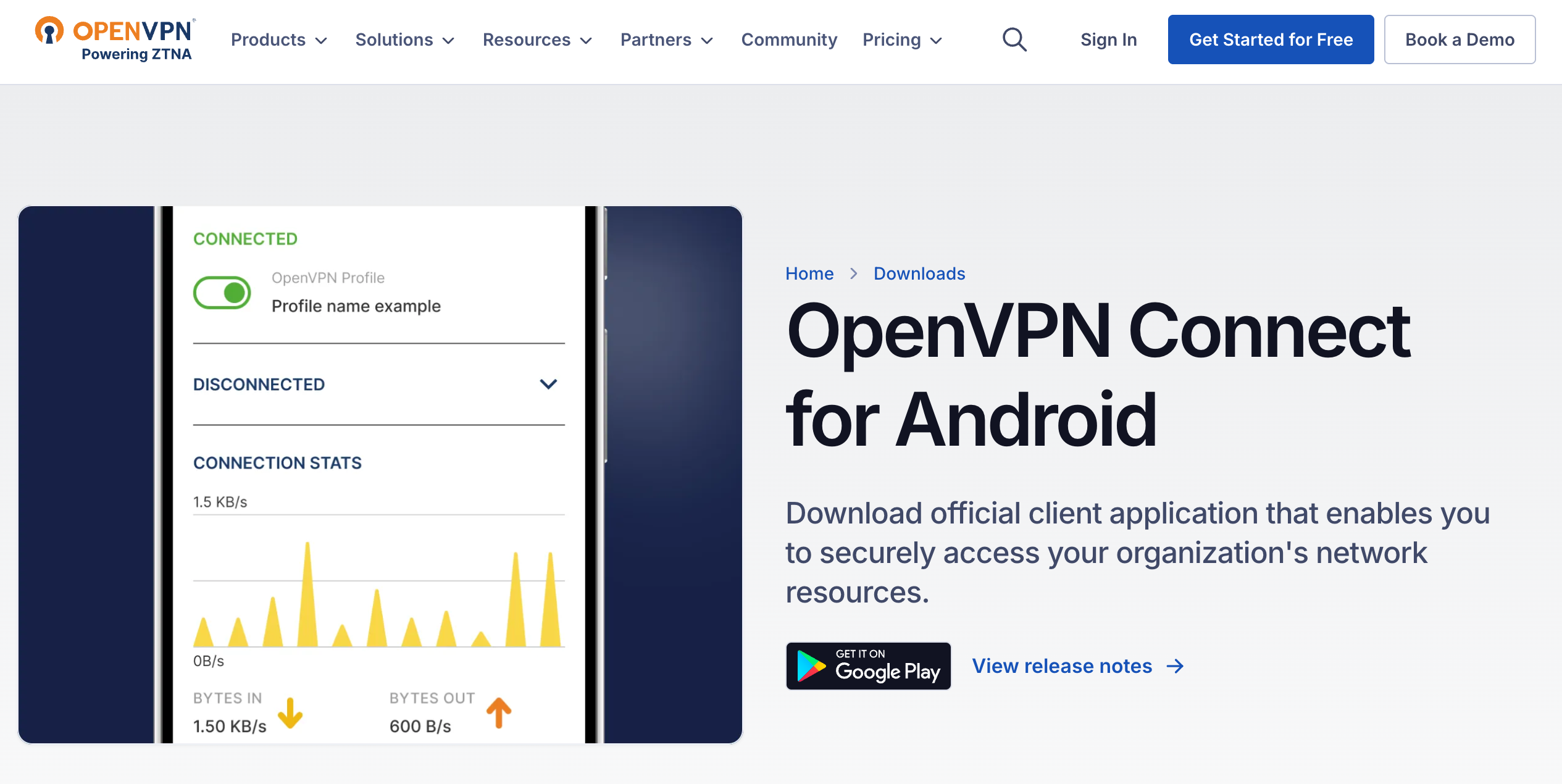
Access the web page: https://openvpn.net/client/ and install OpenVPN Connect.
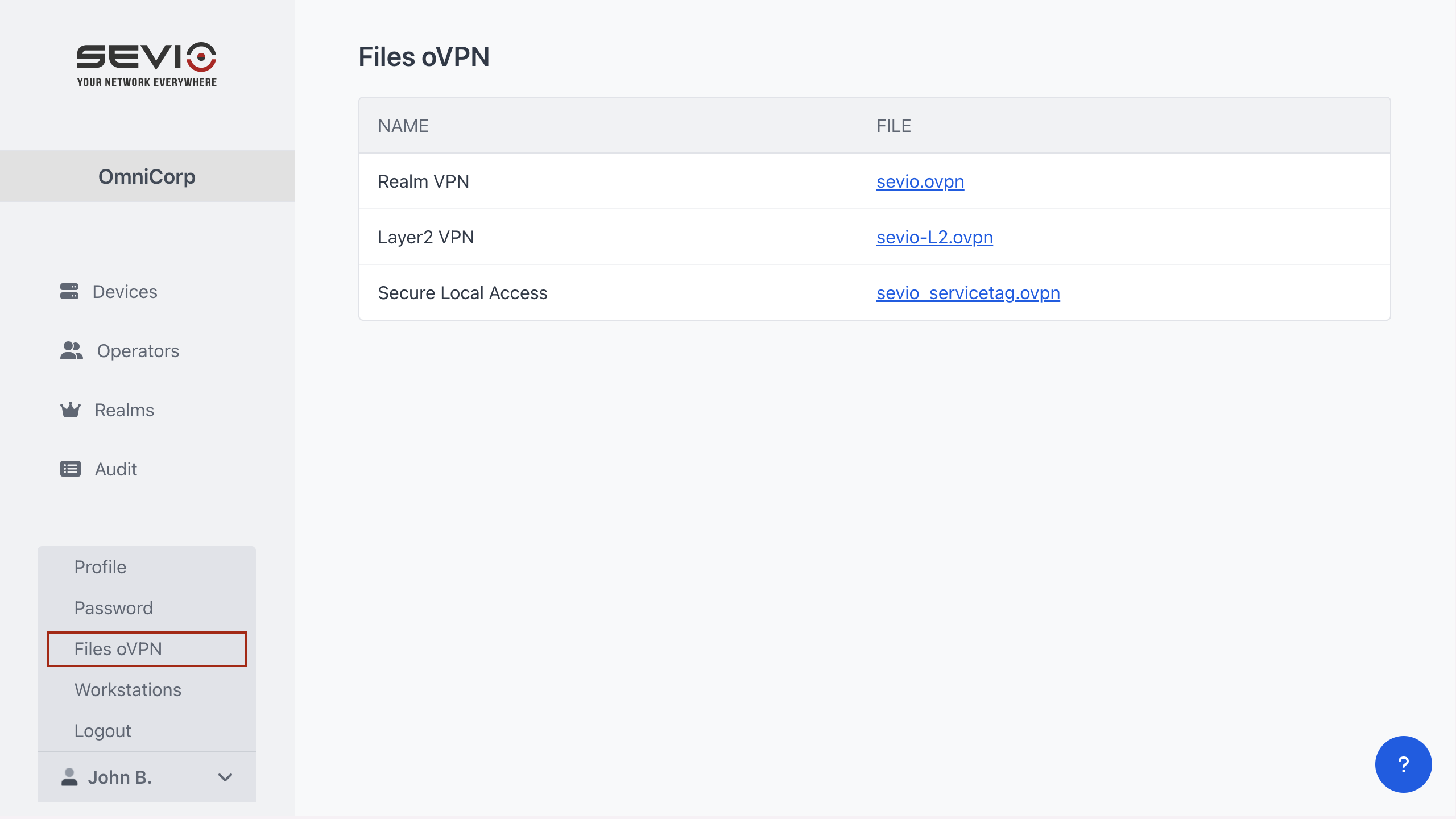
Download the OpenVPN file dedicated to Realm VPN from Sevio Portal (Personal Area > Files oVPN).
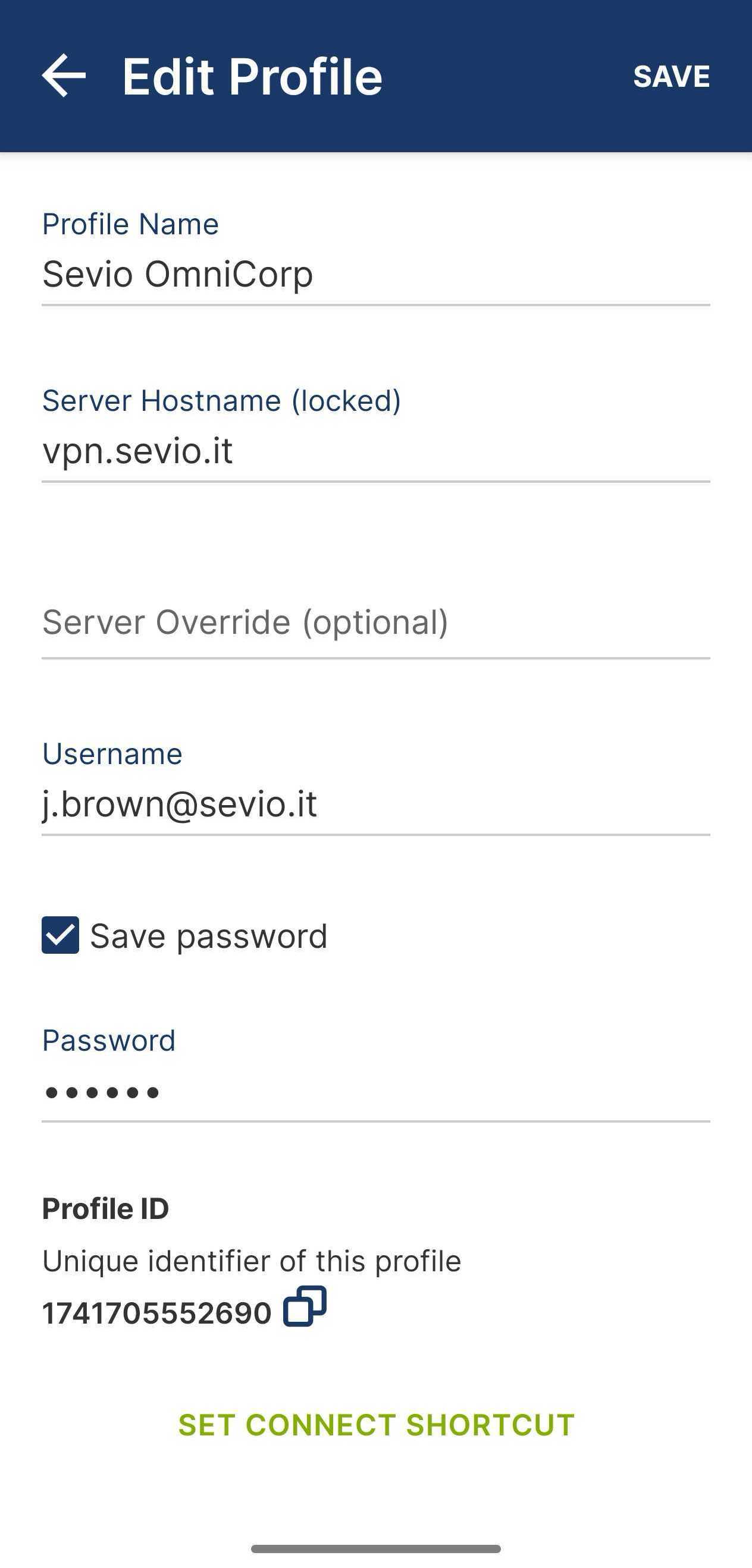
Access to the app and select Upload File. Import the file, then:
- Assign a Profile Name.
- Set the Username and Password of your Sevio Account. If you want save the password, flag the appropriate field.
- Click Connect.
If the MFA method is enabled, the VPN Client will connect, but access to LAN networks will remain suspended until the Operator's identity is verified through an OTP sent via email.
Operators with access to multiple Realms must select the desired Realm during connection.
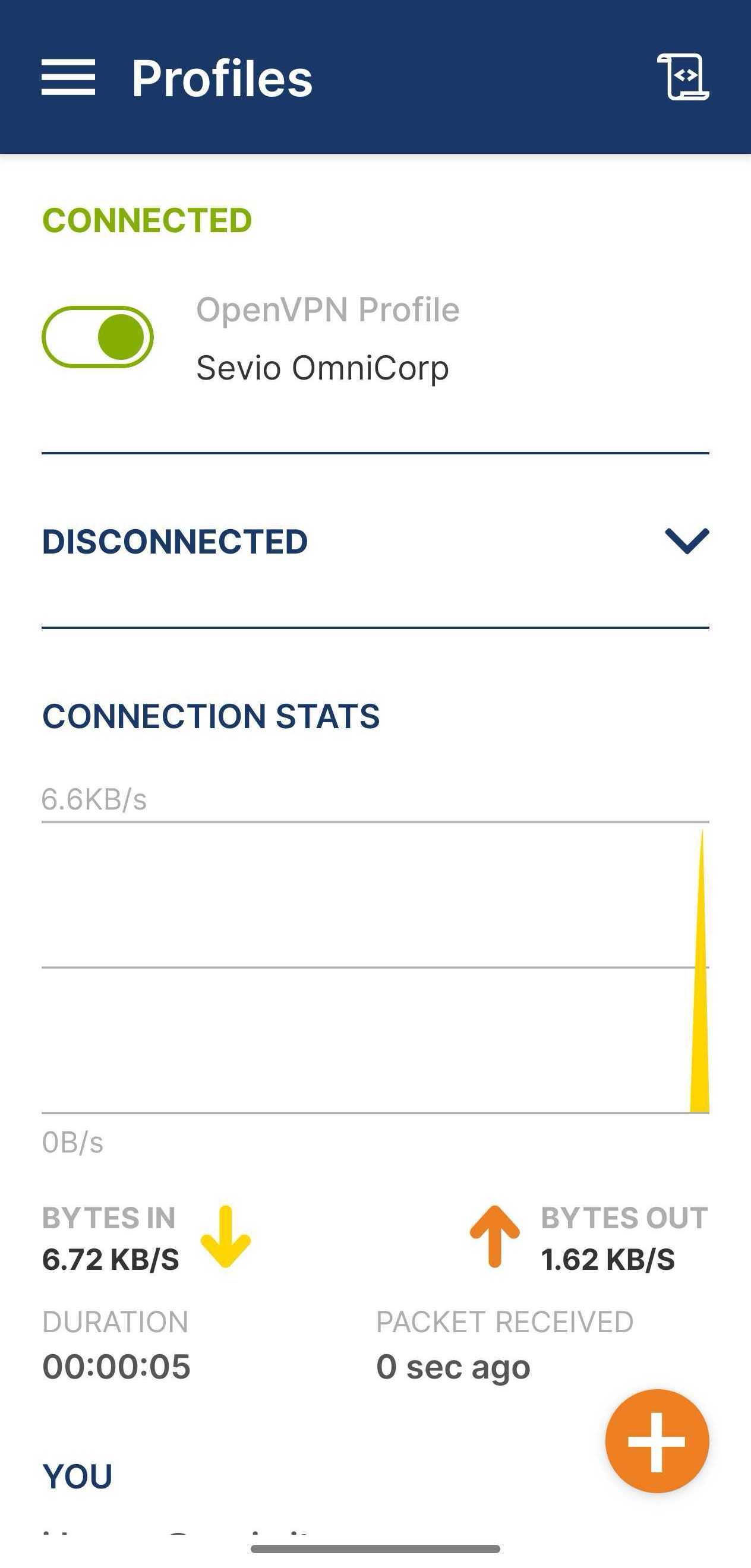
To disconnect from the VPN, turn off the VPN Profile toogle.